
CONNECT
Connect Wendy.
Step by step.
Choose your AI client and follow the connection steps.
Have these two things ready.
- An active Wendy MCP trial or subscription
- A Claude account with Settings → Connectors available
Open Claude’s connector settings
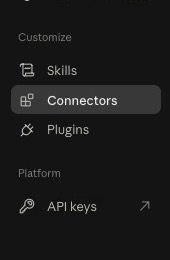
In Claude, open your account menu and select Settings. Choose Connectors in the sidebar and leave the Yours tab selected.
 Open full size
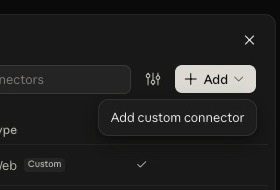
 Choose Add custom connector
Select Add in the upper-right corner, then choose Add custom connector. Wendy is installed manually and will not appear in Claude’s connector directory yet.
 Open full size
 Enter Wendy’s connection details
Enter Wendy MCP as the name and paste the Wendy MCP address shown below. Check that the address ends in /mcp, then select Continue.
https://mcp.wendy.trade/mcp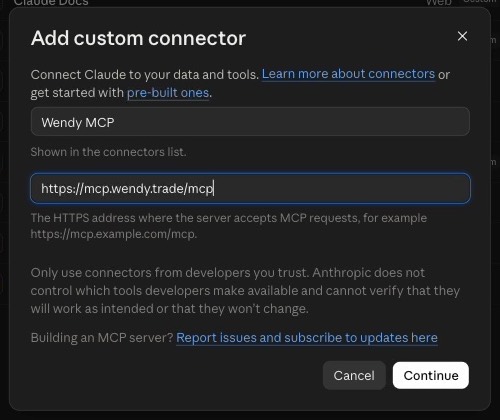 Open full size
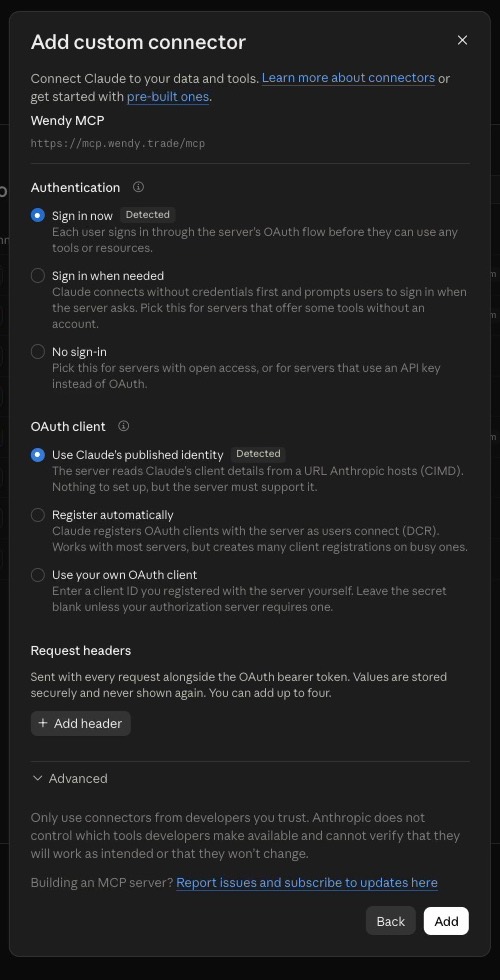
 Keep the detected sign-in settings
Claude should automatically select Sign in now and Use Claude’s published identity. Keep both detected choices, leave request headers empty, and select Add.
 Open full size
 Authorize Claude in Wendy
A Wendy authorization page will open in your browser. Sign in with the email attached to your Wendy subscription, review the access request, and select Allow access. Claude will then return you to the connector.
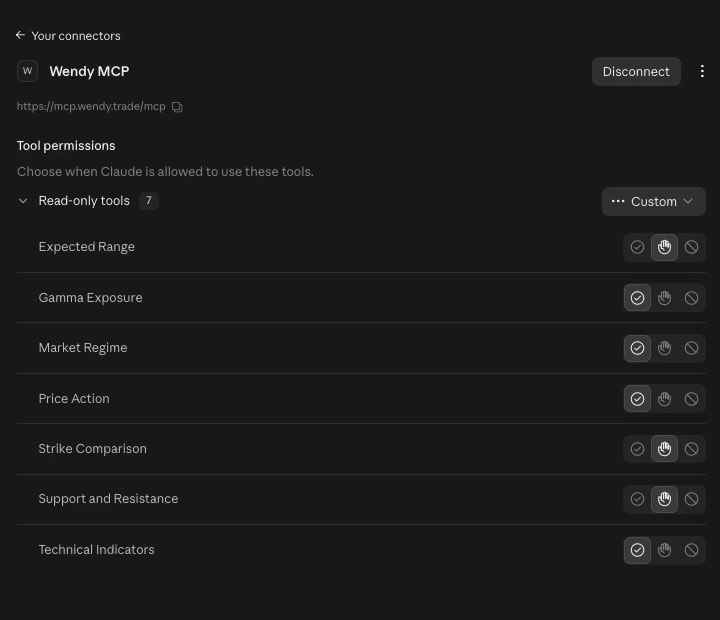
Confirm the seven read-only tools
The Wendy MCP page should show that it is connected, with seven tools under Read-only tools. You can keep the default tool permissions shown by Claude.
 Open full size
 Ask Wendy your first question
Start a new Claude conversation, mention @wendy, and ask a market question. Claude should show Used Wendy MCP before returning Wendy’s structured market context.
Try this prompt@wendy how has the SPX session been this morning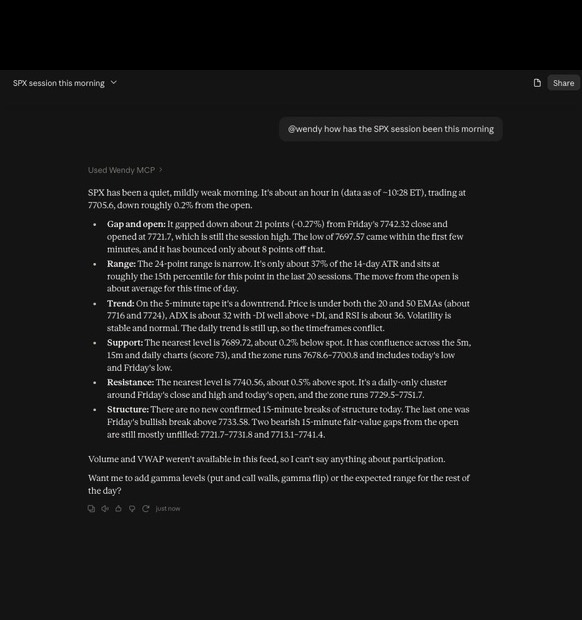 Open full size
FAQ
READY TO CONNECT?
Start your 7-day Wendy trial.
Subscribe first, then return to this guide and use the same email when you authorize your AI client.
Want to explore the tools first?
Explore Wendy